
OneLogin SCIM Setup Guide
Providing documentation to your users on how to set up SCIM with OneLogin is important for a smooth integration process. Below is an example guide of what this documentation could look like.
-
Login to your OneLogin admin console and navigate to the Applications section.
-
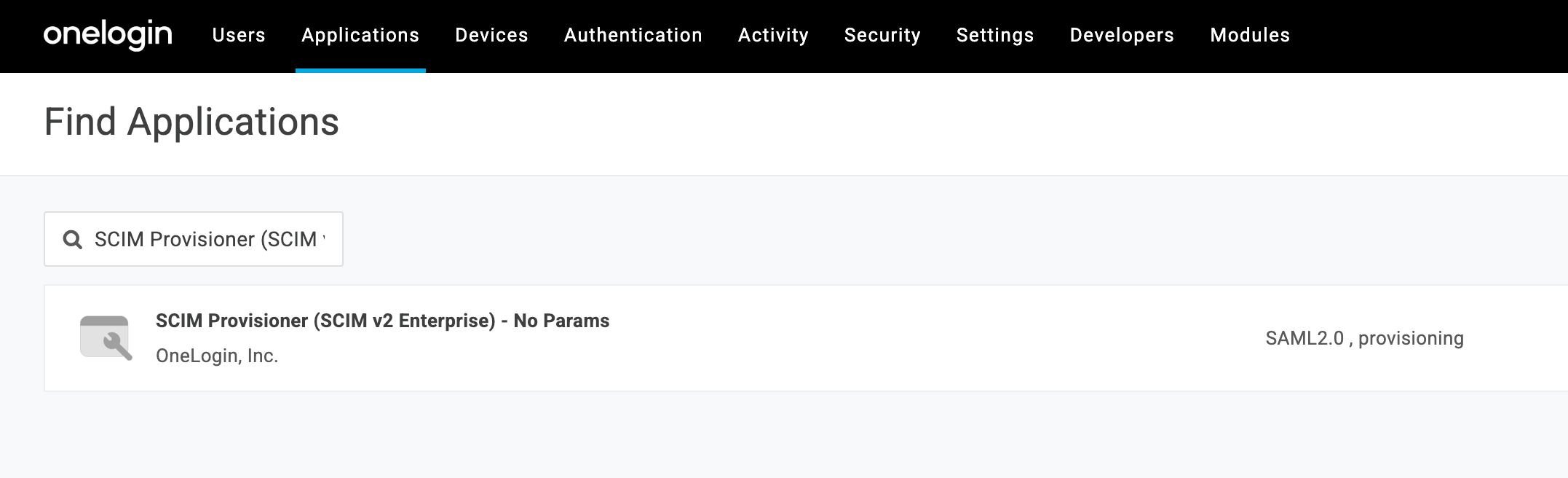
Click Add App and search for SCIM Provisioner (SCIM v2 Enterprise) - No Params and select the app.
-
Name the application and click Save.
-
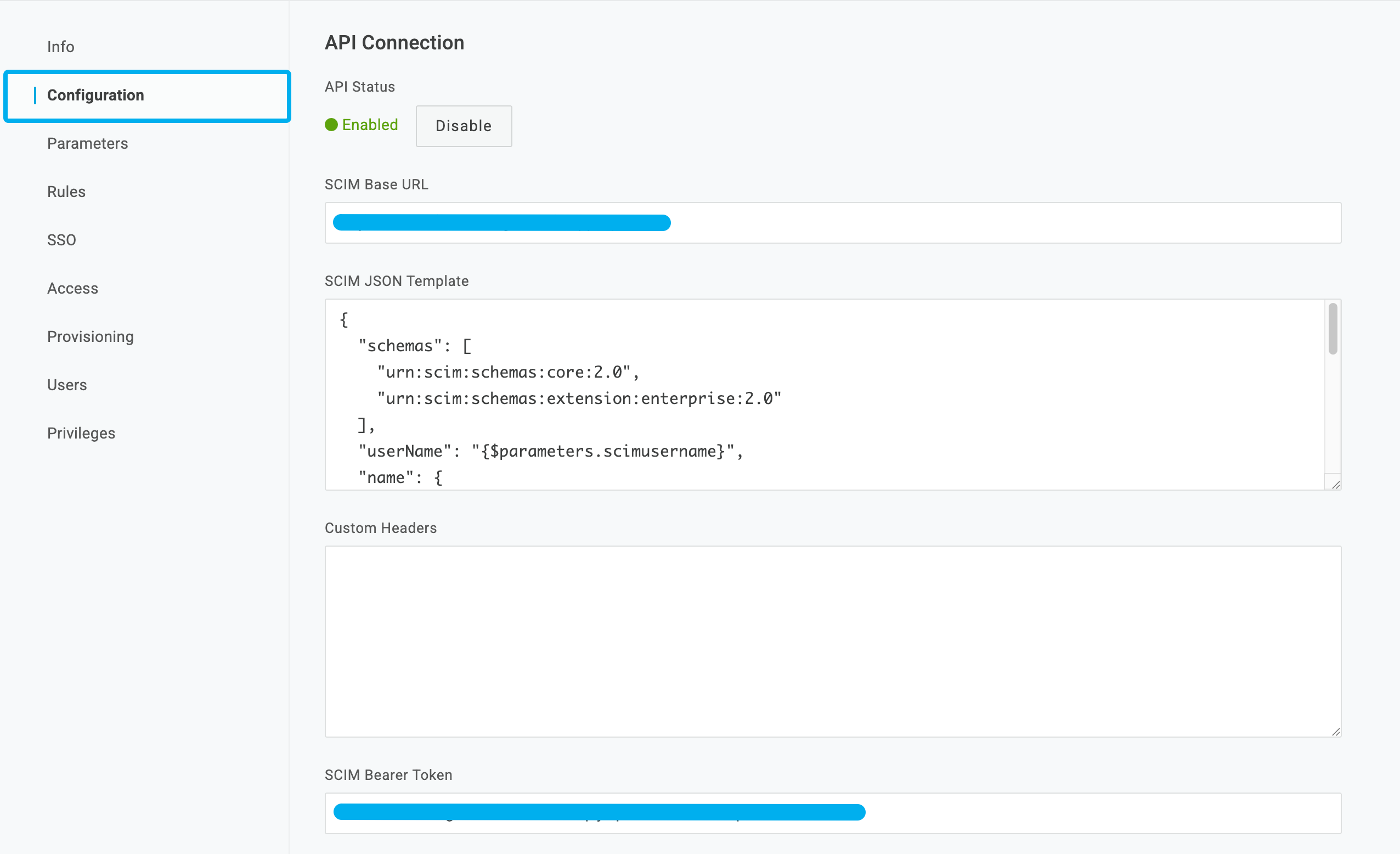
Click Configuration and enter the following:
- SCIM Base URL: Copy/paste the SCIM URL from
{your application}. - SCIM Bearer Token: Copy/paste the SCIM API Key from
{your application}.
- SCIM Base URL: Copy/paste the SCIM URL from
-
Click Save.
-
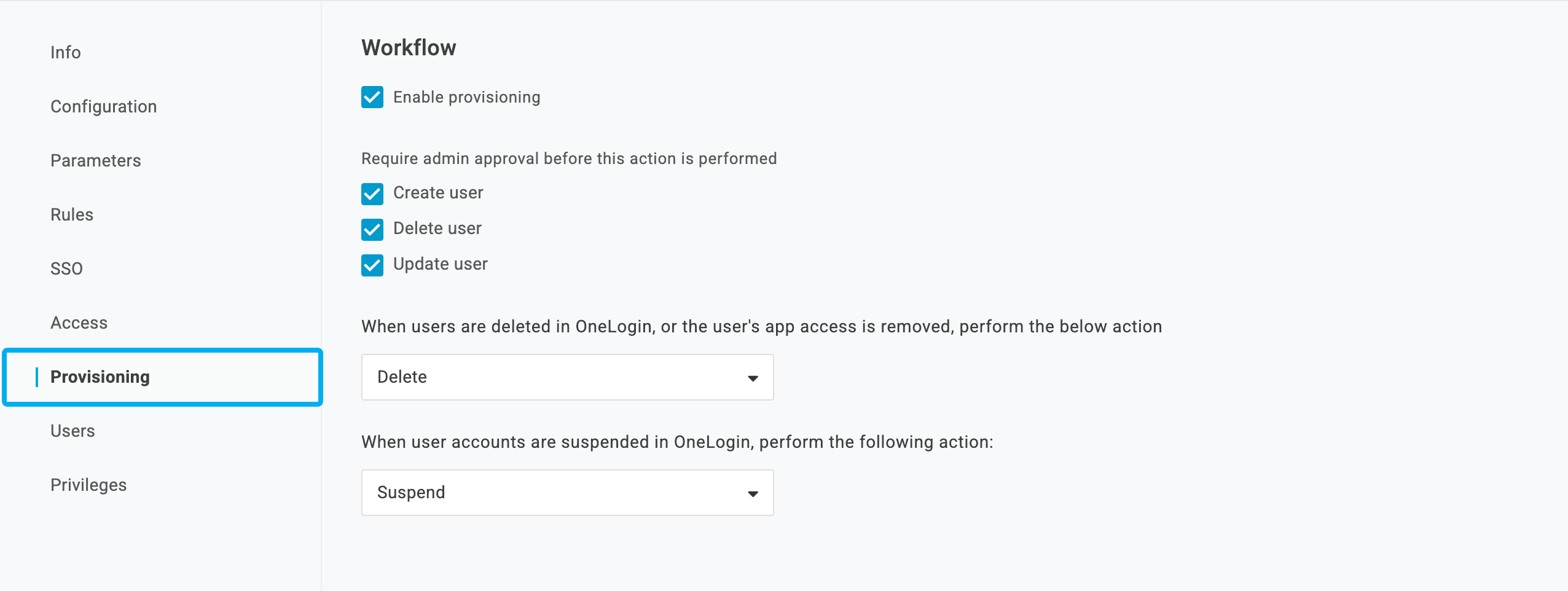
Next, navigate to the Provisioning tab and check Enable provisioning. Then, click Save.
-
Start provisioning users to the app.